## Introduction
You can send ad-hoc WhatsApp messages to your contacts directly from ActiveCampaign contact details page after you install our Chrome extension.
!!!
This feature is available for both the FREE and PAID accounts.
!!!
[!badge size="xl" target="blank" text="Get Chrome extension" icon="link-external" iconAlign="right"](https://chromewebstore.google.com/detail/send-whatsapp-messsages-f/mlicpgdipoofkbcanbkbfipgbldiebic)
## Supported channels
- WhatsApp (with Twilio)
- WhatsApp (with Gupshup)
## Setup on Sociocs
1. Sign up or log in on app.sociocs.com.
1. Connect "*WhatsApp (with Gupshup)*", or "*WhatsApp (with Twilio)*" channel on the "*Connect a new channel*" page. If you're an existing user, after logging in, click on "*Channels*" menu on the top, click on "*+*" button to go to the "*Connect a new channel*" page.
## Install the Chrome extension
1. Go to the Chrome extension page.
1. Click on "*Add to Chrome*".
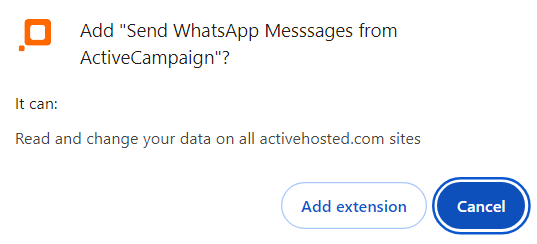
1. You will get a warning popup like below. Click on "*Add extension*".
## Use it on ActiveCampaign
1. Go to contact details page on ActiveCampaign.
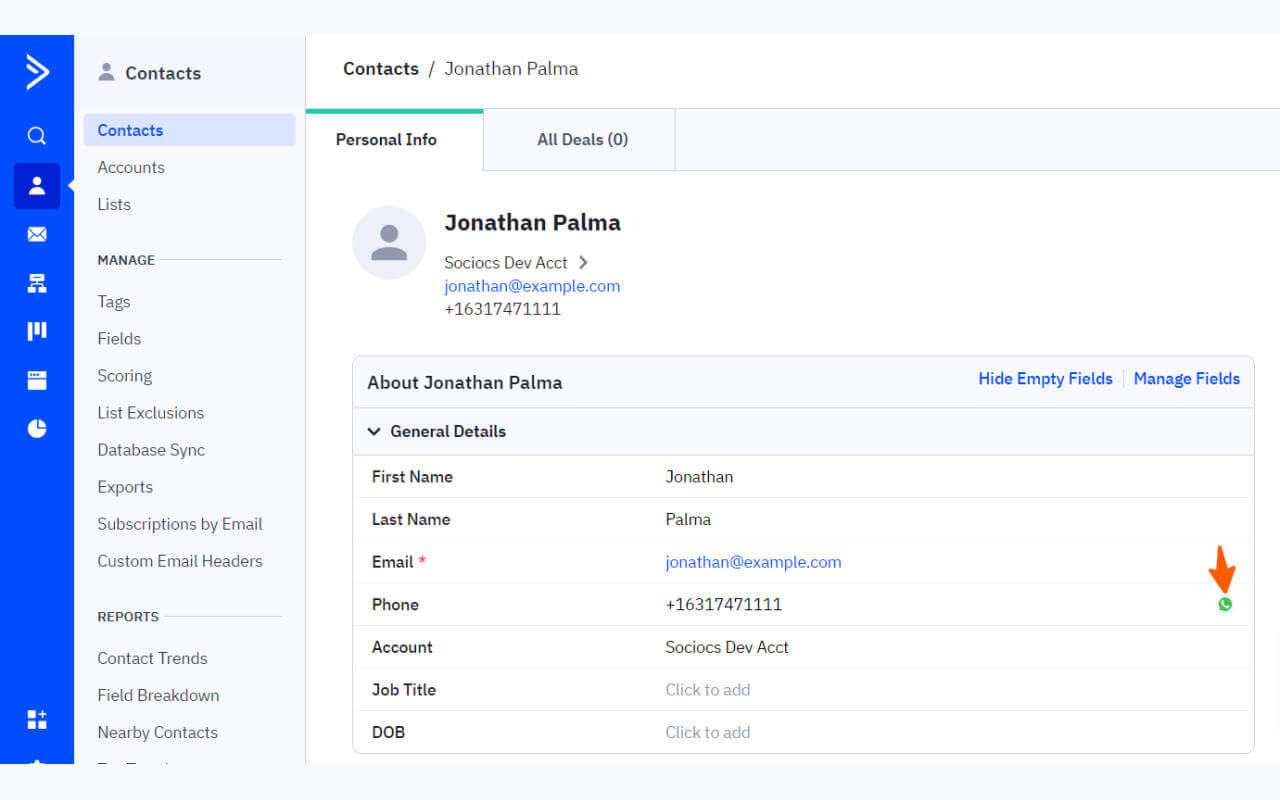
1. You should see a WhatsApp icon button next to the phone number. Click on the icon which opens the Sociocs Outbound Compose page.
1. Enter "*Message text*" (with personalization if you like), and click "*Send*". Below [!badge text="dynamic fields" target="_blank"](/miscellaneous/dynamic-fields.md) supported on the Compose page with this feature. **Dynamic fields are case sensitive.**
{.compact}
Dynamic field | Remarks
--- | ---
\{\{BUSINESS_NAME\}\} | Your business name.
\{\{CUSTOMER_NAME\}\} | Name of the recipient.
\{\{first_name\}\} | First name of the recipient.
\{\{last_name\}\} | Last name of the recipient.
\{\{SENDER_NAME\}\} | Name of the person sending the bulk messages.
!!!warning
Whenever you're using a WhatsApp channel to initiate a message, please make sure the message text is approved as a template by WhatsApp, and enter it exactly as the approved template's text.
You can submit the template for approval on the website of the provider you used (e.g., Twilio) for creating your WhatsApp account.
!!!