#
Notifications
#
Push notifications for your browser
We send notifications when new messages arrive in your inbox. You can enable or disable them at any time. To ensure quick replies to your customers, we recommend keeping notifications on.
#
Web app
Notification settings apply only to the browser you're currently using. To change them on a different browser, log in to Sociocs there and follow the same steps.
#
Enable notifications
#
First time user
When you go to the inbox for the first time, you will receive a confirmation popup to enable notifications for the browser you are using.
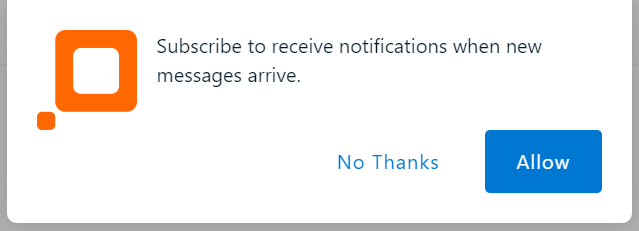
- Click "Allow" on the confirmation popup.
- You may receive another confirmation popup (from your browser this time) to give notifications access to Sociocs. Click "Allow".
#
Returning user
- Click on the dropdown menu on top right.
- Select "Notifications" on the left side.
- Toggle "Push notifications for this browser" switch to on.
#
Disable notifications
We do not recommend disabling notifications.
#
First time user
Click "No Thanks" on the confirmation popup.
#
Returning user
- Click on the dropdown menu on top right.
- Select "Notifications" on the left side.
- Toggle "Push notifications for this browser" switch to off.
#
Android app
#
Enable notifications
#
First time user
Notifications are automatically enabled on the Android app.
#
Returning user
Go to your device's notifications setting, and turn notifications on for Sociocs.
#
Disable notifications
Go to your device's notifications setting, and turn notifications off for Sociocs.
#
iOS app
#
Enable notifications
#
First time user
After you log in to the app, you will receive a confirmation popup to allow notifications from Sociocs. Tap on "Allow".
#
Returning user
Go to your device's notifications setting, and turn notifications off for Sociocs.
#
Disable notifications
#
First time user
Tap "Don't Allow" on the notifications confirmation popup.
#
Returning user
Go to your device's notifications setting, and turn notifications off for Sociocs.
#
Daily performance updates
We send a performance update email everyday which contains a summary of previous day's conversations.
This email is turned on by default for all team members with "Owner" or "Admin".
#
How to send daily performance updates to only selected users?
- Change the radio button selection to "Send update only to selected users".
- Select team members which should receive the emails.
#
How to completely disable daily performance updates?
#
Web app
- Click on the dropdown menu on top right.
- Select "Notifications" on the left side.
- Toggle "Daily performance updates" switch to off.
#
Mobile app
- Open drawer menu on top left.
- Tap on "Profile & settings".
- Select "Notifications" in the list.
- Toggle "Daily performance updates" switch to off.
#
Bulk messaging status update emails
We send an email notification when bulk messaging campaign/job completes successfully or fails.
This email is turned on by default for all team members with "Owner" or "Admin".
#
How to send bulk messaging campaign/job update emails to only selected users?
- Change the radio button selection to "Send update only to selected users".
- Select team members which should receive the emails.
#
How to completely disable bulk messaging campaign/job update emails?
#
Web app
- Click on the dropdown menu on top right.
- Select "Notifications" on the left side.
- Toggle "Bulk messaging status update emails" switch to off.
#
Mobile app
- Open drawer menu on top left.
- Tap on "Profile & settings".
- Select "Notifications" in the list.
- Toggle "Bulk messaging status update emails" switch to off.